
Unexpected MFA Prompt? Employee Action Guide
Cybersecurity, Multifactor Authentication
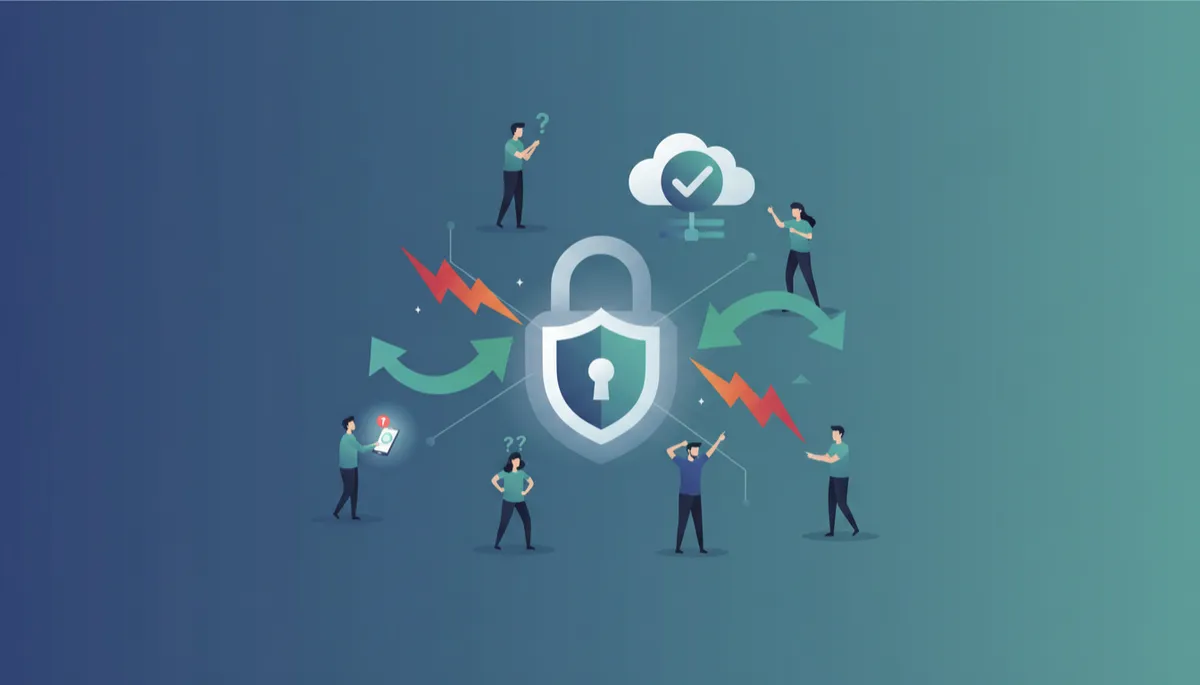
Multifactor authentication (MFA) helps protect accounts from cyberattacks, but it only works when employees know how to respond. This guide explains what an unexpected MFA prompt really means and the exact steps employees should take to protect both themselves and their organization.
1. Received an Unexpected MFA Prompt: Why It Matters
An unexpected MFA prompt is any authentication request you receive when you are not actively signing in, resetting a password, or performing an action that you know should trigger MFA. It might appear as a push notification on your phone, a text message with a code, or a prompt in your authenticator app asking you to approve a login.
In many cases, this is a sign that someone else has your username and password and is trying to log in as you. Attackers rely on employees reflexively tapping “Approve” or entering a code without thinking. This tactic, often called “MFA fatigue” or “push bombing,” floods you with prompts in the hope that you eventually give in and accept one just to make them stop.
📌 Key Takeaway: If you did not start a login, password reset, or similar action, treat any MFA prompt as suspicious by default.
Remember, MFA is there to confirm that you are the one logging in. When a prompt arrives out of the blue, it is a warning sign that someone else is knocking at the door using your credentials. Your response in the next few minutes can determine whether that attempt fails or turns into a serious security incident.
2. What Employees Should Do When an Unexpected MFA Prompt Appears
Step 1: Do Not Approve the Request
The most important action is also the simplest: never approve an MFA request you did not initiate. Do not tap “Approve,” “Yes,” or “Confirm,” and do not enter a one-time code into a login screen if you did not start that login yourself. Approving an attacker’s request effectively opens the door and can give them full access to your email, files, business applications, and sensitive data.
Step 2: Check Whether Any Legitimate Activity Could Explain It
Take a moment to think through what you were doing just before the prompt appeared. Ask yourself:
Was I signing in to email, VPN, a cloud app, or a new device?
Did I just reset my password or change security settings?
Did IT or a trusted vendor ask me to log in or verify my account?
If the answer to all of these questions is “no,” then you should treat the prompt as suspicious. Even if you are unsure, it is safer to assume it is malicious until IT confirms otherwise.
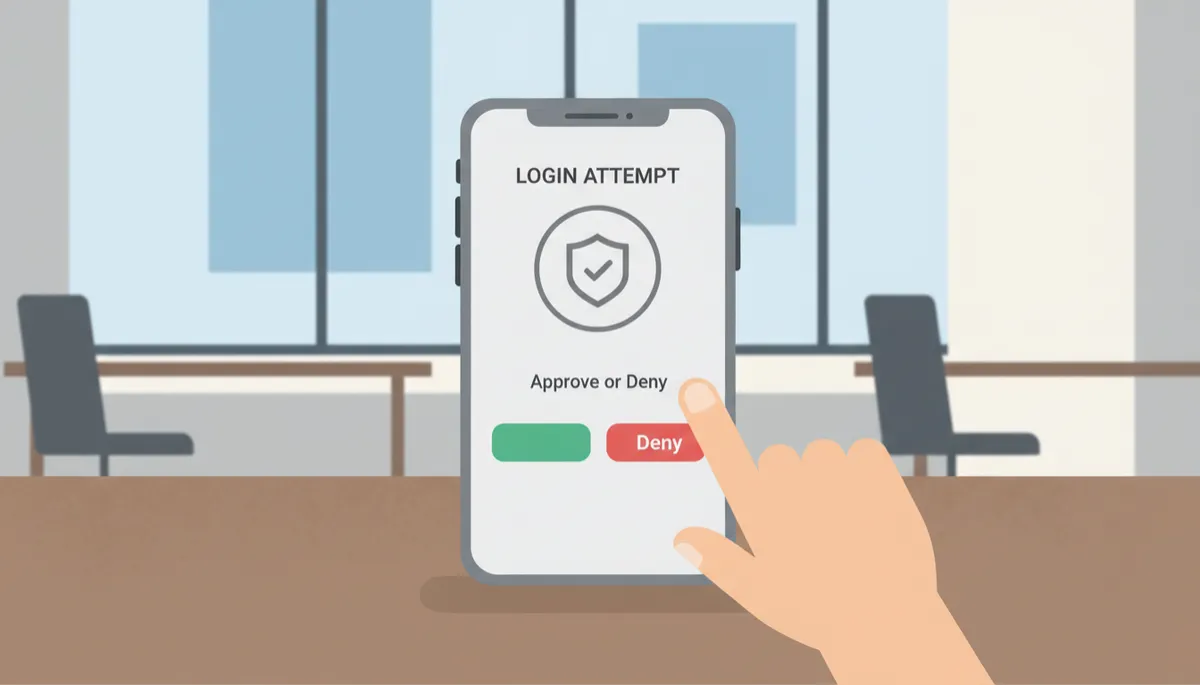
Treat unexpected MFA prompts as potential attacks and respond calmly, not reflexively.
Step 3: Deny the Request and Capture Any Details You See
If your MFA app allows it, select “Deny” or “Report as Fraud”. Some systems will ask if you recognize the login attempt or let you flag it as suspicious. Always choose the option that indicates you did not initiate the request. When possible, note any information shown on the screen, such as:
The time of the prompt and number of prompts received
The app or service being accessed (for example, email or VPN)
Any location, IP address, or device information displayed
💡 Pro Tip: A quick screenshot of the MFA prompt can be extremely helpful for your security team when they investigate.
Step 4: Immediately Change Your Password
Because an unexpected MFA prompt usually means someone has your password, your next move should be to change that password right away for the affected account. Use a strong, unique password that you do not use anywhere else, ideally stored in a company-approved password manager. If you suspect the same password was reused on other services, update those as well to reduce the chance of further compromise.
Step 5: Notify Your IT or Security Team Without Delay
After denying the prompt and changing your password, contact your organization’s IT help desk or security team using the official channel your company provides (ticketing system, internal chat, or security hotline). Share:
When the prompt appeared and how many times it repeated
Which account or application it referenced
Any screenshots or details you captured from the notification
Reporting quickly allows the security team to review login logs, block suspicious sessions, and alert others if a broader attack is underway. Your vigilance can prevent the attacker from moving further into company systems.
Step 6: Stay Alert for Follow-Up Phishing Attempts
After a blocked MFA attempt, attackers may try other tricks, such as sending convincing phishing emails that pretend to be from IT or a trusted service, asking you to “verify your account” or “fix a login issue.” Be extra cautious with any messages you receive in the hours and days following an unexpected prompt, and verify unusual requests through a known, official channel before taking action.
Building a Culture of Safe MFA Use
Multifactor authentication is only as strong as the decisions employees make in the moment. By pausing before you approve, denying suspicious prompts, changing your password, and alerting IT, you turn a potential breach into a contained incident. Encourage your colleagues to follow the same steps so that an unexpected MFA prompt becomes a signal to act wisely, not a button to tap without thinking.


